Adding text watermarks Leave feedback
On this page
Using text watermarks is an effective way to protect document content. By overlaying sensitive documents with watermarks such as “Confidential” or “Draft”, you can deter unauthorized distribution and reinforce data security.
The following example shows how to add a scaled, rotated text watermark to a document and save the result.
from groupdocs.watermark import Watermarker
from groupdocs.watermark.watermarks import TextWatermark, Font, Color, SizingType
from groupdocs.watermark.common import HorizontalAlignment, VerticalAlignment

def add_text_watermark():
    with Watermarker("./sample.pdf") as watermarker:
        watermark = TextWatermark("CONFIDENTIAL", Font("Arial", 36.0))
        watermark.foreground_color = Color.red
        watermark.horizontal_alignment = HorizontalAlignment.CENTER
        watermark.vertical_alignment = VerticalAlignment.CENTER
        watermark.sizing_type = SizingType.SCALE_TO_PARENT_DIMENSIONS
        watermark.scale_factor = 0.9
        watermark.rotate_angle = 45.0
        watermark.opacity = 0.5
        watermarker.add(watermark)
        watermarker.save("./output.pdf")

if __name__ == "__main__":
    add_text_watermark()
sample.pdf is the sample file used in this example. Click here to download it.
Binary file (PDF, 352 KB)
If a document consists of multiple parts (pages, worksheets, slides, frames, etc.), the watermark is added to each of them. You can target specific parts via the PagesSetup property:
from groupdocs.watermark import Watermarker
from groupdocs.watermark.watermarks import TextWatermark, Font, PagesSetup

def add_watermark_to_pages():
    with Watermarker("./sample.pdf") as watermarker:
        watermark = TextWatermark("Test watermark", Font("Arial", 19.0))
        watermark.pages_setup = PagesSetup()
        watermark.pages_setup.pages = [1, 3]
        watermarker.add(watermark)
        watermarker.save("./output.pdf")

if __name__ == "__main__":
    add_watermark_to_pages()
sample.pdf is the sample file used in this example. Click here to download it.
Binary file (PDF, 353 KB)
You can place a watermark at an absolute position by setting x, y, width, and height. Values are measured in the default units of the document.
from groupdocs.watermark import Watermarker
from groupdocs.watermark.watermarks import TextWatermark, Font

def add_watermark_absolute():
    with Watermarker("./sample.pdf") as watermarker:
        watermark = TextWatermark("Test watermark", Font("Times New Roman", 8.0))
        watermark.x = 10
        watermark.y = 20
        watermark.width = 100
        watermark.height = 40
        watermarker.add(watermark)
        watermarker.save("./output.pdf")

if __name__ == "__main__":
    add_watermark_absolute()
sample.pdf is the sample file used in this example. Click here to download it.
Binary file (PDF, 357 KB)
WarningThe origin of coordinates differs across document types (relative positioning doesn’t have these specifics and can be used as a unified positioning approach).
The following table lists the unit of measure and origin of coordinates for each document format:
| Document Format | Unit of Measure | Origin of Coordinates |
|---|---|---|
| Point | Left bottom corner of page | |
| WordProcessing | Point | Left top corner of page |
| Spreadsheet | Point | Left top corner of worksheet |
| Presentation | Point | Left top corner of slide |
| Image | Pixel | Left top corner of image (frame) |
| Diagram | Point | Left top corner of page |
Instead of exact coordinates, use parent-relative alignment and set offsets with margins.
from groupdocs.watermark import Watermarker
from groupdocs.watermark.watermarks import TextWatermark, Font
from groupdocs.watermark.common import HorizontalAlignment, VerticalAlignment

def add_watermark_relative():
    with Watermarker("./sample.pdf") as watermarker:
        watermark = TextWatermark("Test watermark", Font("Calibri", 12.0))
        watermark.horizontal_alignment = HorizontalAlignment.RIGHT
        watermark.vertical_alignment = VerticalAlignment.BOTTOM
        watermark.margins.right = 10
        watermark.margins.bottom = 5
        watermarker.add(watermark)
        watermarker.save("./output.pdf")

if __name__ == "__main__":
    add_watermark_relative()
sample.pdf is the sample file used in this example. Click here to download it.
Binary file (PDF, 536 KB)
WarningExcel worksheets don’t have explicit borders, therefore the most bottom-right non-empty cell is used to determine the working-area size.
Set relative margins using MarginType, where the values are interpreted as a portion of the parent size (0.0–1.0).
from groupdocs.watermark import Watermarker
from groupdocs.watermark.watermarks import TextWatermark, Font, MarginType
from groupdocs.watermark.common import HorizontalAlignment, VerticalAlignment

def add_watermark_margin_type():
    with Watermarker("./sample.pdf") as watermarker:
        watermark = TextWatermark("Test watermark", Font("Calibri", 12.0))
        watermark.horizontal_alignment = HorizontalAlignment.RIGHT
        watermark.vertical_alignment = VerticalAlignment.BOTTOM
        watermark.margins.margin_type = MarginType.RELATIVE_TO_PARENT_DIMENSIONS
        watermark.margins.right = 0.1
        watermark.margins.bottom = 0.2
        watermarker.add(watermark)
        watermarker.save("./output.pdf")

if __name__ == "__main__":
    add_watermark_margin_type()
sample.pdf is the sample file used in this example. Click here to download it.
Binary file (PDF, 537 KB)
Scale the watermark relative to the parent size using sizing_type and scale_factor.
from groupdocs.watermark import Watermarker
from groupdocs.watermark.watermarks import TextWatermark, Font, SizingType

def add_watermark_size_type():
    with Watermarker("./sample.pdf") as watermarker:
        watermark = TextWatermark("This is a test watermark", Font("Calibri", 12.0))
        watermark.sizing_type = SizingType.SCALE_TO_PARENT_DIMENSIONS
        watermark.scale_factor = 0.5
        watermarker.add(watermark)
        watermarker.save("./output.pdf")

if __name__ == "__main__":
    add_watermark_size_type()
sample.pdf is the sample file used in this example. Click here to download it.
Binary file (PDF, 537 KB)
NoteUsing relative size and positioning is the simplest way to add a watermark to a document of any type.
Rotate a watermark by setting rotate_angle in degrees. Positive values mean clockwise.
from groupdocs.watermark import Watermarker
from groupdocs.watermark.watermarks import TextWatermark, Font, SizingType
from groupdocs.watermark.common import HorizontalAlignment, VerticalAlignment

def add_watermark_rotated():
    with Watermarker("./sample.pdf") as watermarker:
        watermark = TextWatermark("Test watermark", Font("Calibri", 8.0))
        watermark.horizontal_alignment = HorizontalAlignment.RIGHT
        watermark.vertical_alignment = VerticalAlignment.TOP
        watermark.sizing_type = SizingType.SCALE_TO_PARENT_DIMENSIONS
        watermark.scale_factor = 0.5
        watermark.rotate_angle = 45
        watermarker.add(watermark)
        watermarker.save("./output.pdf")

if __name__ == "__main__":
    add_watermark_rotated()
sample.pdf is the sample file used in this example. Click here to download it.
Binary file (PDF, 537 KB)
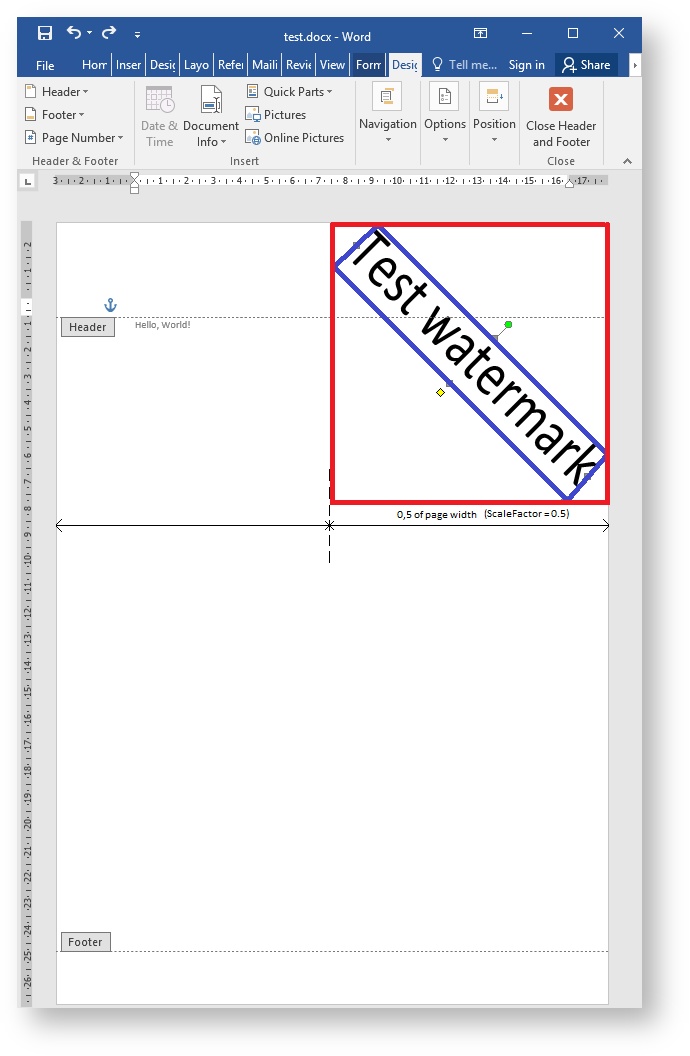
When a rotation angle is set, the watermark size is taken to be the axis-aligned bounding-box size. The picture below shows the result of the snippet above — the actual watermark bounds are blue and the bounding box is red. The bounding-box size is used to calculate the watermark’s relative size.
You can use custom TrueType fonts by specifying a folder path in the Font constructor.
from groupdocs.watermark import Watermarker
from groupdocs.watermark.watermarks import TextWatermark, Font, Color

def add_custom_font_watermark():
    # Point fonts_folder at a directory containing your TrueType (.ttf) fonts
    fonts_folder = r"c:\CustomFonts"
    with Watermarker("./sample.pdf") as watermarker:
        watermark = TextWatermark("Test watermark", Font("CustomFontName", fonts_folder, 36.0))
        watermark.foreground_color = Color.blue
        watermark.opacity = 0.5
        watermark.x = 10
        watermark.y = 10
        watermarker.add(watermark)
        watermarker.save("./output.pdf")

if __name__ == "__main__":
    add_custom_font_watermark()
sample.pdf is the sample file used in this example. Click here to download it. Supply your own TrueType fonts in the folder referenced by fonts_folder.
By default, page margins are ignored and the maximum available space is used. To align the watermark with the page margins, set consider_parent_margins to True.
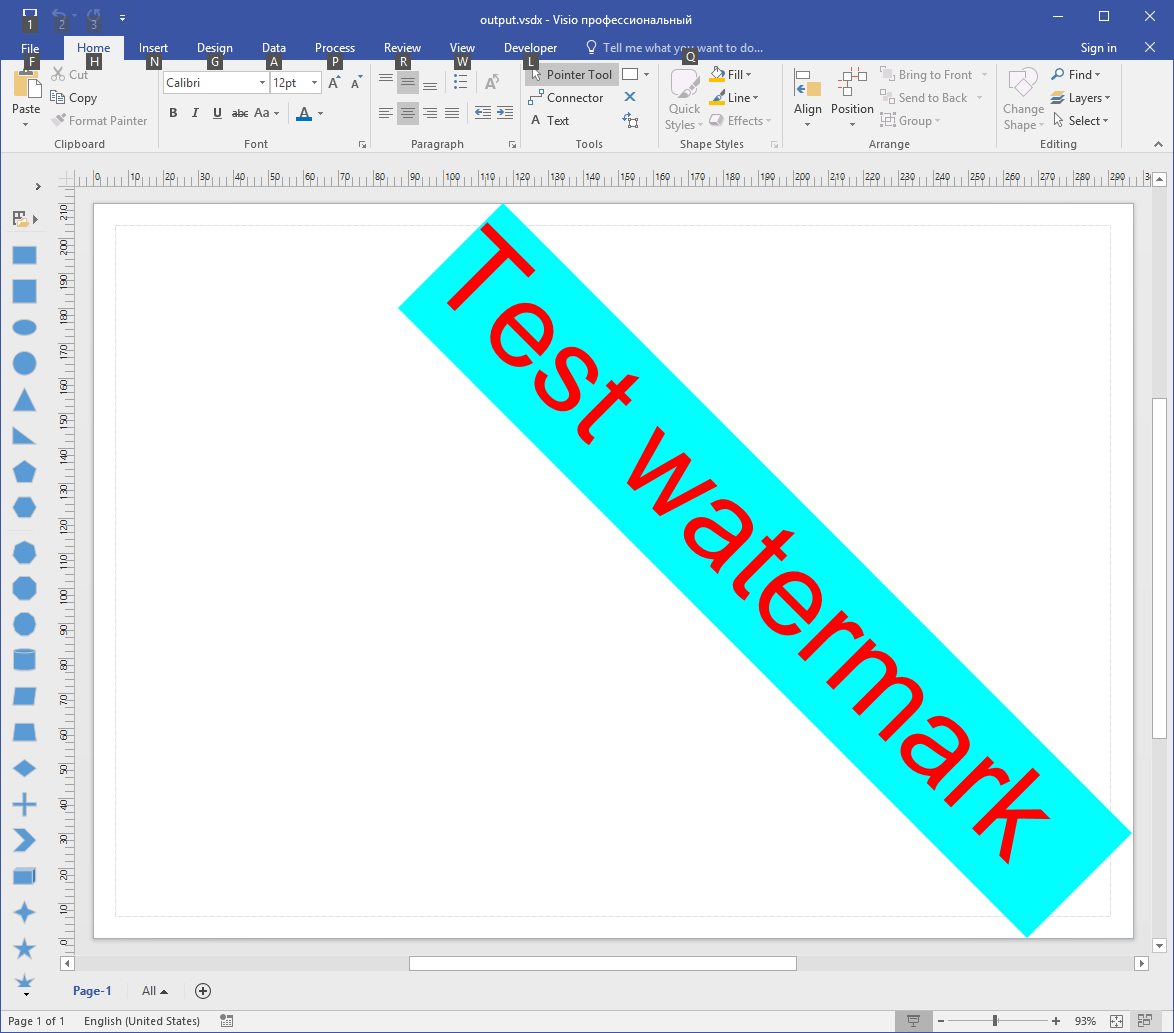
As you can see, the watermark goes beyond the page margins. To change this behavior, set the consider_parent_margins property to True (as shown below).
from groupdocs.watermark import Watermarker
from groupdocs.watermark.watermarks import TextWatermark, Font, Color, SizingType
from groupdocs.watermark.common import HorizontalAlignment, VerticalAlignment

def add_watermark_parent_margins():
    with Watermarker("./sample.pdf") as watermarker:
        watermark = TextWatermark("Test watermark", Font("Arial", 42.0))
        watermark.horizontal_alignment = HorizontalAlignment.RIGHT
        watermark.vertical_alignment = VerticalAlignment.TOP
        watermark.sizing_type = SizingType.SCALE_TO_PARENT_DIMENSIONS
        watermark.scale_factor = 1.0
        watermark.rotate_angle = 45
        watermark.foreground_color = Color.red
        watermark.background_color = Color.aqua
        watermark.consider_parent_margins = True
        watermarker.add(watermark)
        watermarker.save("./output.pdf")

if __name__ == "__main__":
    add_watermark_parent_margins()
sample.pdf is the sample file used in this example. Click here to download it.
Binary file (PDF, 355 KB)
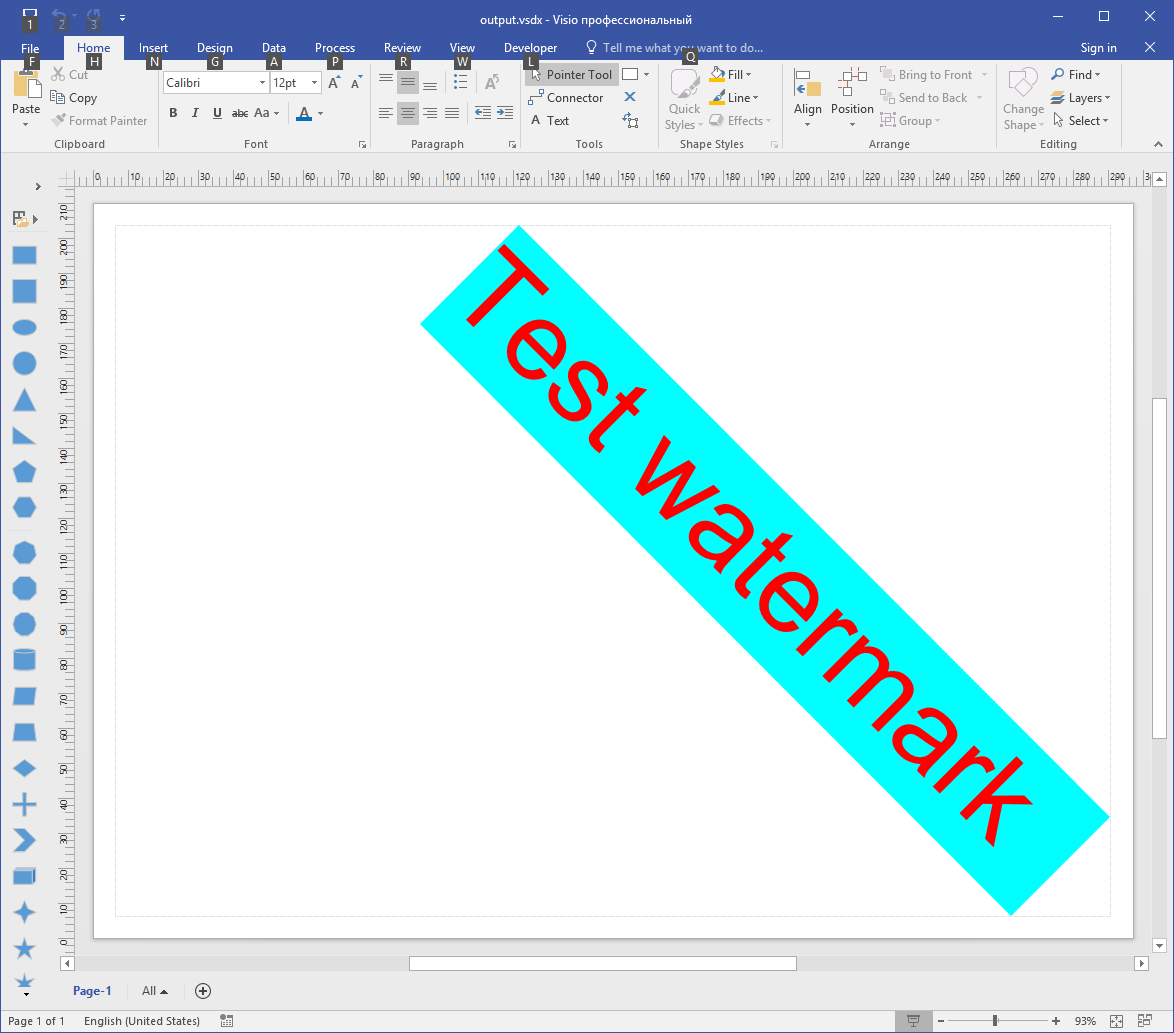
Now the watermark is aligned with respect to the page margins.
Watermarks are represented by different objects in different formats, and some properties may not be supported for a specific format (for example, background color for WordArt in Word documents). See Features Overview for details.
Was this page helpful?
Any additional feedback you'd like to share with us?
Please tell us how we can improve this page.
Thank you for your feedback!
We value your opinion. Your feedback will help us improve our documentation.