Batch Watermarking with Duplicate-Safe Processing Leave feedback
On this page
Many enterprises need to brand or protect thousands of documents—PDFs, Word files, presentations, and spreadsheets—on a regular basis. This sample ships with four document types (DOCX, PDF, XLSX, PPTX) so every pipeline mode is demonstrated across real‑world formats. Performing this manually is error‑prone and time‑consuming, and re‑running a batch job can unintentionally create duplicate watermarks. This use‑case shows how to apply text and logo watermarks in bulk while keeping the process duplicate-safe, so running the job multiple times never produces redundant marks. The solution leverages GroupDocs.Watermark for .NET, which abstracts the heavy lifting of format handling, searchable watermark objects, and smart replacement logic.
- .NET 6.0 or later installed on the development machine.
- GroupDocs.Watermark NuGet package (latest stable version).
- A valid GroupDocs.Watermark license file (temporary or permanent). The sample falls back to evaluation mode if the file is missing, but a licensed build removes evaluation watermarks.
- Basic familiarity with C# console applications and file‑system operations.
# Clone the sample repository
git clone https://github.com/groupdocs-watermark/batch-watermark-pipeline-using-groupdocs-watermark-dotnet.git
cd GroupDocs.Watermark-for-.NET/net/sample-project

# Add the Watermark library to the project
dotnet add package GroupDocs.Watermark

# Restore and build the solution
dotnet restore
dotnet build
The commands above set up a ready‑to‑run console app that demonstrates the complete batch pipeline.
batch-watermark-pipeline-csharp-dotnet/
│
├── Program.cs
├── BatchWatermarkDemo.csproj
├── images/
│   ├── 1-example-text.png
│   ├── 2-example-seed.png
│   ├── 3-example-image.png
│   └── 4-example-logo-replace.png
├── Resources/
│   ├── Logos/
│   │   ├── old-logo.png
│   │   └── new-logo.png
│   └── SampleDocs/
│       ├── sample.docx
│       ├── sample.pdf
│       ├── sample.pptx
│       └── sample.xlsx
└── Results/
    ├── text/
    ├── image/
    ├── smart/
    ├── seeded-with-old-logo/
    └── replace-logo/
Program.cs holds isolated methods for licensing, folder scanning, text watermarking, logo watermarking, smart duplicate checks, and logo replacement. Each method is small enough to be understood in isolation yet works together to form the end‑to‑end pipeline.
Below is a concise walk‑through that ties the helper methods together. Only the essential parts of each method are shown; the full source lives in Program.cs.
try
{
    var license = new License();
    license.SetLicense("./GroupDocs.Watermark.lic");
    Console.WriteLine("License applied.");
}
catch
{
    Console.WriteLine("Running in evaluation mode – license not found.");
}
The snippet creates a License instance and points it at a local .lic file. If the file cannot be located, the catch block prevents a crash and lets the demo continue in evaluation mode.
var folder = "./InputDocuments";
var supported = FileType.GetSupportedFileTypes()
    .Select(ft => ft.Extension.ToLowerInvariant())
    .ToHashSet();

var files = Directory.GetFiles(folder, "*.*", SearchOption.AllDirectories)
    .Where(f => supported.Contains(Path.GetExtension(f).ToLowerInvariant()))
    .ToList();

Console.WriteLine($"Found {files.Count} supported file(s).");
The code builds a hash set of extensions reported by the API, then filters the directory so only processable files are returned.
foreach (var file in files)
{
    using var watermarker = new Watermarker(file);
    var criteria = new TextSearchCriteria("CONFIDENTIAL", false);
    if (watermarker.Search(criteria).Count > 0) continue; // already watermarked

    var textWm = new TextWatermark("CONFIDENTIAL",
        new Font("Arial", 19, FontStyle.Bold))
    {
        ForegroundColor = Color.Red,
        Opacity = 0.3,
        RotateAngle = -30,
        TileOptions = new TileOptions
        {
            LineSpacing = new MeasureValue
            {
                MeasureType = TileMeasureType.Percent,
                Value = 12
            },
            WatermarkSpacing = new MeasureValue
            {
                MeasureType = TileMeasureType.Percent,
                Value = 10
            }
        }
    };
    watermarker.Add(textWm);
    watermarker.Save(Path.Combine("./Output", Path.GetFileName(file)));
}
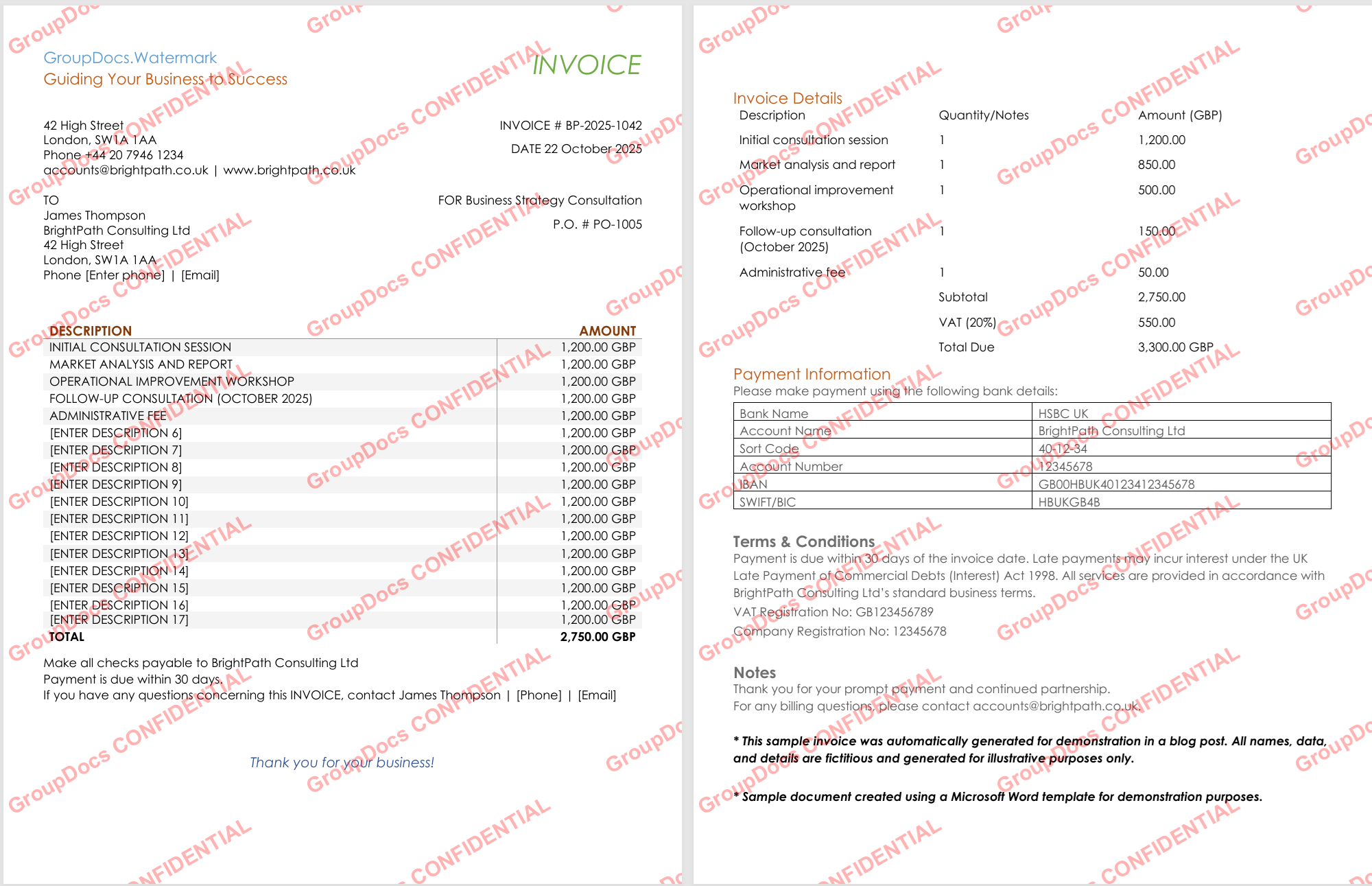
The TextSearchCriteria checks whether the exact phrase CONFIDENTIAL already exists. If it does, the file is skipped, guaranteeing that the batch can be re‑executed safely.
var logoPath = "./Resources/old-logo.png";
foreach (var file in files)
{
    using var watermarker = new Watermarker(file);
    using var imgWm = new ImageWatermark(logoPath)
    {
        Opacity = 0.4,
        RotateAngle = -30,
        TileOptions = new TileOptions
        {
            LineSpacing = new MeasureValue
            {
                MeasureType = TileMeasureType.Percent,
                Value = 15
            },
            WatermarkSpacing = new MeasureValue
            {
                MeasureType = TileMeasureType.Percent,
                Value = 12
            }
        }
    };
    watermarker.Add(imgWm);
    watermarker.Save(Path.Combine("./Output", Path.GetFileName(file)));
}
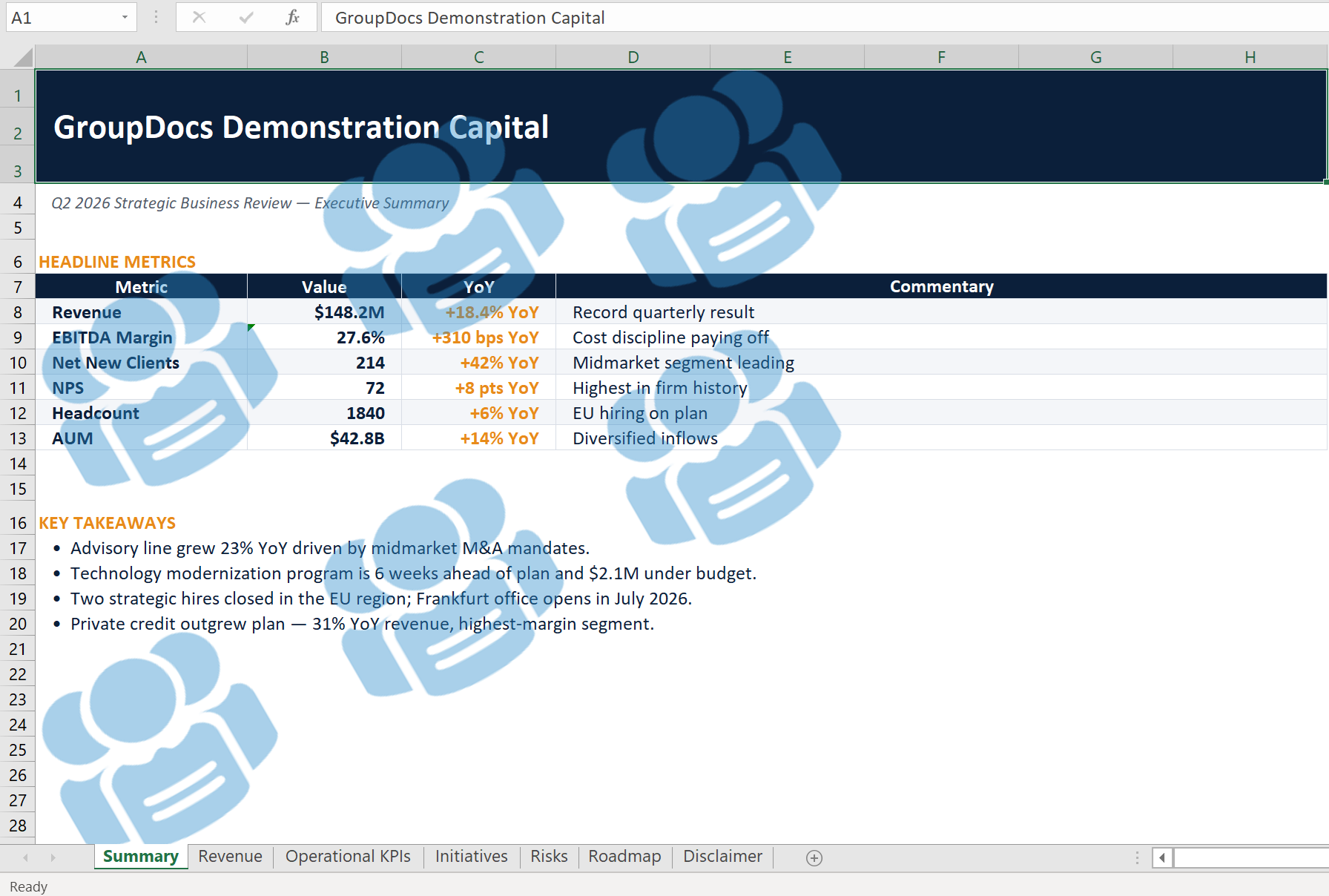
An image watermark is tiled across every page, using the same rotation and opacity as the text watermark. The example works for PDFs, Office files, and common image formats.
var oldLogo = "./Resources/old-logo.png";
var newLogo = "./Resources/new-logo.png";
byte[] newData = File.ReadAllBytes(newLogo);

var settings = new WatermarkerSettings
{
    SearchableObjects = new SearchableObjects
    {
        PdfSearchableObjects = PdfSearchableObjects.All
    }
};

foreach (var file in files)
{
    using var watermarker = new Watermarker(file, settings);
    var dct = new ImageDctHashSearchCriteria(oldLogo) { MaxDifference = 0.4 };
    var hist = new ImageColorHistogramSearchCriteria(oldLogo) { MaxDifference = 0.5 };
    var criteria = dct.Or(hist);
    var matches = watermarker.Search(criteria);
    if (matches.Count == 0) continue;

    foreach (var wm in matches)
        wm.ImageData = newData; // swap image bytes

    watermarker.Save(Path.Combine("./Output", Path.GetFileName(file)));
}
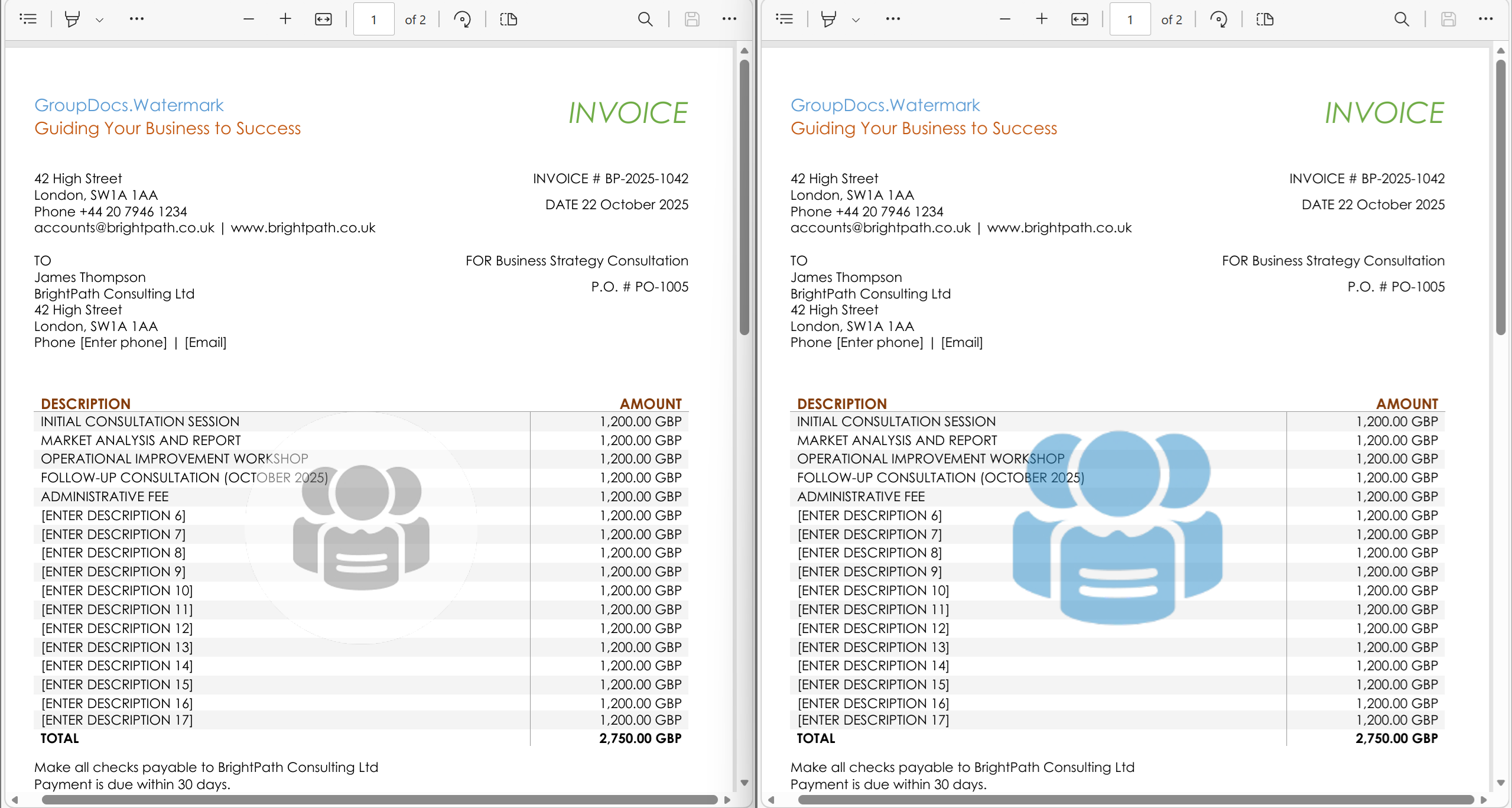
Two complementary image‑search strategies (DCT hash for precision, histogram for tolerance) locate the old corporate logo in both Office documents and PDF artifacts. Matching watermarks are overwritten with the new logo bytes, enabling seamless re‑branding.
Note💡 Tip: Run the three steps sequentially (text → logo → replace) to simulate a full migration workflow.
- Evaluation mode adds a subtle watermark to output files; obtain a proper license to remove it.
- PDF artifacts must be added with
PdfArtifactWatermarkOptions(as shown in the SeedOldLogoSamples helper) for the logo to become searchable. - The sample writes all processed files to
./Output. Ensure the folder exists or let the code create it automatically. - Large batches benefit from parallelism; the examples are deliberately single‑threaded for clarity.
- GroupDocs.Watermark Documentation – .NET
- API Reference – Watermarker Class
- GitHub Repository – Sample Project
- Temporary License Request
- GroupDocs Forum – Watermark Tag
Was this page helpful?
Any additional feedback you'd like to share with us?
Please tell us how we can improve this page.
Thank you for your feedback!
We value your opinion. Your feedback will help us improve our documentation.