Render text documents as HTML, PDF, and image files Leave feedback
On this page
GroupDocs.Viewer for Python allows you to convert text documents to HTML, PDF, PNG, and JPEG formats so you can view document content in a web browser, PDF or image viewer application.
To start with the GroupDocs.Viewer API, create a Viewer class instance. Pass a text document you want to view to the class constructor. You can load the document from a file or stream. Call one of the Viewer.view method overloads to convert the image to HTML, PDF, PNG, or JPEG format. These methods allow you to render the entire document or specific pages.
GroupDocs.Viewer supports the following text and programming file formats:
- .AS / .AS3 (ActionScript File)
- .ASM (Assembly Language Source Code File)
- .BAT (DOS Batch File)
- .C (C/C++ Source Code File)
- .CC (C++ Source Code File)
- .CMAKE (CMake File)
- .CPP (C++ Source Code File)
- .CS (C# Source Code File)
- .CSS (Cascading Style Sheet)
- .CXX (C++ Source Code File)
- .DIFF (Patch File)
- .ERB (Ruby ERB Script)
- .GROOVY (Groovy Source Code File)
- .H (C/C++/Objective-C Header File)
- .HAML (Haml Source Code File)
- .HH (C++ Header File)
- .JAVA (Java Source Code File)
- .JS (JavaScript File)
- .JSON (JavaScript Object Notation File)
- .LESS (LESS Style Sheet)
- .LOG (Log File)
- .M (Objective-C Implementation File)
- .MAKE (Xcode Makefile Script)
- .MD (Markdown Documentation File)
- .ML (ML Source Code File)
- .MM (Objective-C++ Source File)
- .PHP (PHP Source Code File)
- .PL (Perl Script)
- .PROPERTIES (Java Properties File)
- .PY (Python Script)
- .RB (Ruby Source Code)
- .RST (reStructuredText File)
- .SASS (Syntactically Awesome StyleSheets File)
- .SCALA (Scala Source Code File)
- .SCM (Scheme Source Code File)
- .SCRIPT (Generic Script File)
- .SH (Bash Shell Script)
- .SML (Standard ML Source Code File)
- .SQL (Structured Query Language Data File)
- .TXT (Plain Text File)
- .VB (Visual Basic Source Code File)
- .VIM (Vim Settings File)
- .XML (XML File)
- .YAML (YAML Document)
When you load a text document from a file, you should explicitly specify their format. To do this, create a LoadOptions class instance and use the FileType method. Then pass this instance to the Viewer class constructor.
from groupdocs.viewer import Viewer, FileType
from groupdocs.viewer.options import LoadOptions, PdfViewOptions

def render_text_with_load_options():
    # Specify the file encoding.
    load_options = LoadOptions(FileType.MD)
    # Convert the document to PDF.
    with Viewer("terms_of_service.txt", load_options) as viewer:
        viewOptions = PdfViewOptions("render_text_with_load_options/text_with_load_options.pdf")
        viewer.view(viewOptions)

if __name__ == "__main__":
    render_text_with_load_options()
terms_of_service.txt is the sample file used in this example. Click here to download it.
Binary file (PDF, 28 KB)
Create an HtmlViewOptions.for_embedded_resources class instance and pass it to the Viewer.view method to convert a text file to HTML. The HtmlViewOptions class properties allow you to control the conversion process. For instance, you can embed all external resources in the generated HTML file, minify the output file, and optimize it for printing. Refer to the following documentation section for details: Rendering to HTML.
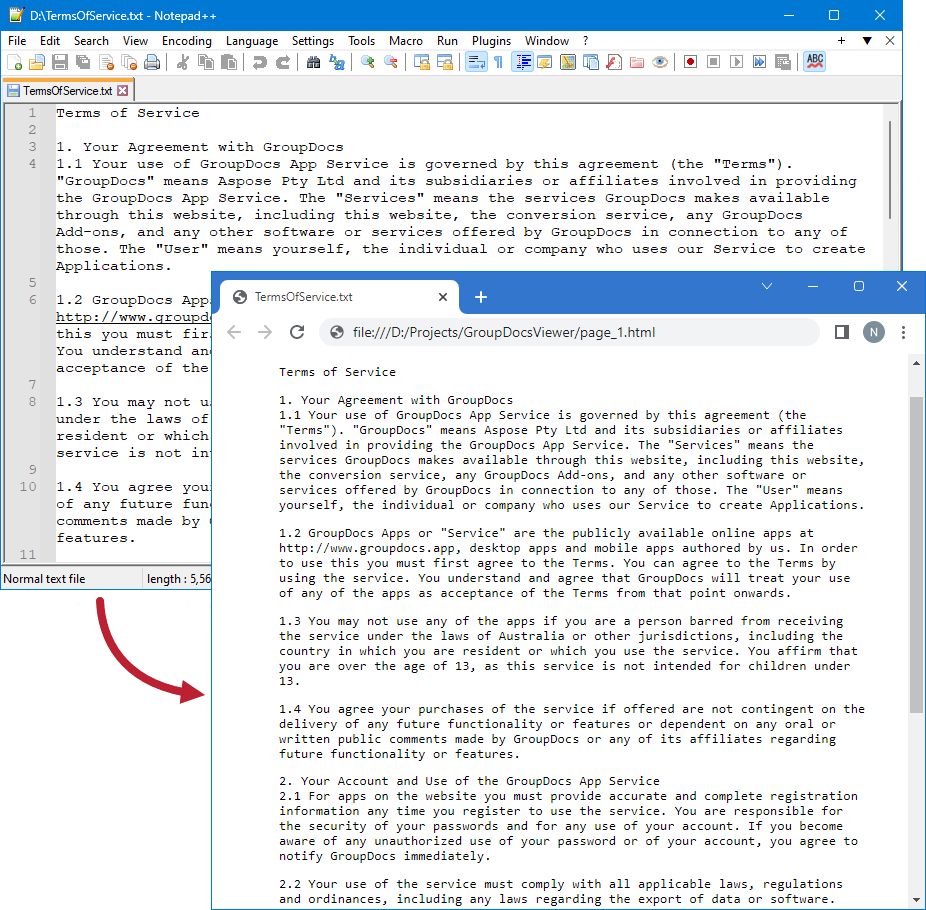
To save all elements of an HTML page (including text, graphics, and stylesheets) into a single file, call the HtmlViewOptions.for_embedded_resources method and specify the output file name.
from groupdocs.viewer import Viewer
from groupdocs.viewer.options import HtmlViewOptions

def render_text_to_html():
    # Load text file
    with Viewer("terms_of_service.txt") as viewer:
        # Convert the text file to HTML.
        # {0} is replaced with the current page number in the output file names.
        viewOptions = HtmlViewOptions.for_embedded_resources("render_text_to_html/pdf_page_{0}.html")
        viewer.view(viewOptions)

if __name__ == "__main__":
    render_text_to_html()
terms_of_service.txt is the sample file used in this example. Click here to download it.
<!doctype html><html lang='en'><head><meta charset = 'utf-8'><meta name='viewport' content='width=device-width, initial-scale=1, shrink-to-fit=no'><title>terms_of_service.txt</title></head> <style type='text/css'>.gdv-container pre { width:588px; white-space:normal; } .gdv-container { margin-top:60px; margin-left:60px; }</style><body><div style="font-size:10pt;font-family:Times New Roman;" class='gdv-container'><pre>London is the capital city of England and the United Kingdom, and the most popul
[TRUNCATED]
The following image demonstrates the result:
If you want to store output HTML files and additional resource files (such as fonts, images, and style sheets) separately, call the HtmlViewOptions.for_external_resources method and pass the following parameters:
- The output file path format
- The path format for the folder with external resources
- The resource URL format
from groupdocs.viewer import Viewer
from groupdocs.viewer.options import HtmlViewOptions

def render_text_to_html_external():
    # Load text file
    with Viewer("terms_of_service.txt") as viewer:
        # Create an HTML file for each page.
        # Specify the HTML file names and location of external resources.
        # {0} and {1} are replaced with the current page number and resource name, respectively.
        viewOptions = HtmlViewOptions.for_external_resources("render_text_to_html_external/pdf_page_{0}.html", "render_text_to_html_external/pdf_page_{0}/resource_{0}_{1}", "render_text_to_html_external/pdf_page_{0}/resource_{0}_{1}")
        viewer.view(viewOptions)

if __name__ == "__main__":
    render_text_to_html_external()
terms_of_service.txt is the sample file used in this example. Click here to download it.
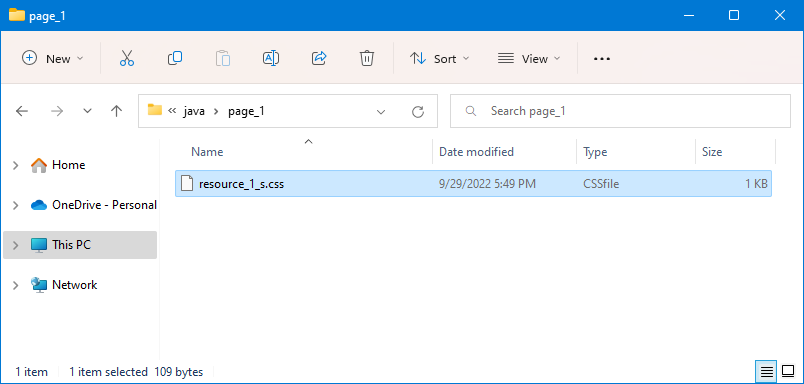
render_text_to_html_external/pdf_page_1.html (3 KB)
render_text_to_html_external/pdf_page_1/resource_1_s.css (109 bytes)
The image below demonstrates the result. External resources are placed in a separate folder.
If you need to display the entire document content on a single HTML page, use the HtmlViewOptions.setRenderToSinglePage method, as shown below:
from groupdocs.viewer import Viewer
from groupdocs.viewer.options import HtmlViewOptions

def render_text_to_single_html():
    # Load text file
    with Viewer("terms_of_service.txt") as viewer:
        # Create an HTML file.
        viewOptions = HtmlViewOptions.for_embedded_resources("render_text_to_single_html/text_to_single_html.html")
        # Render the file to a single page.
        viewOptions.render_to_single_page = True
        viewer.view(viewOptions)

if __name__ == "__main__":
    render_text_to_single_html()
terms_of_service.txt is the sample file used in this example. Click here to download it.
<!doctype html><html lang='en'><head><meta charset = 'utf-8'><meta name='viewport' content='width=device-width, initial-scale=1, shrink-to-fit=no'><title>terms_of_service.txt</title></head> <style type='text/css'>.gdv-container pre { width:588px; white-space:normal; } .gdv-container { margin-top:60px; margin-left:60px; }</style><body><div style="font-size:10pt;font-family:Times New Roman;" class='gdv-container'><pre>London is the capital city of England and the United Kingdom, and the most popul
[TRUNCATED]
Create a PdfViewOptions class instance and pass it to the Viewer.view method to convert a text file to PDF. The PdfViewOptions class properties allow you to control the conversion process. For instance, you can protect the output PDF file, reorder its pages, and specify the quality of document images. Refer to the following documentation section for details: Rendering to PDF.
from groupdocs.viewer import Viewer
from groupdocs.viewer.options import PdfViewOptions

def render_text_to_pdf():
    # Load text file
    with Viewer("terms_of_service.txt") as viewer:
        # Convert the text file to PDF.
        viewOptions = PdfViewOptions("render_text_to_pdf/text_document.pdf")
        viewer.view(viewOptions)

if __name__ == "__main__":
    render_text_to_pdf()
terms_of_service.txt is the sample file used in this example. Click here to download it.
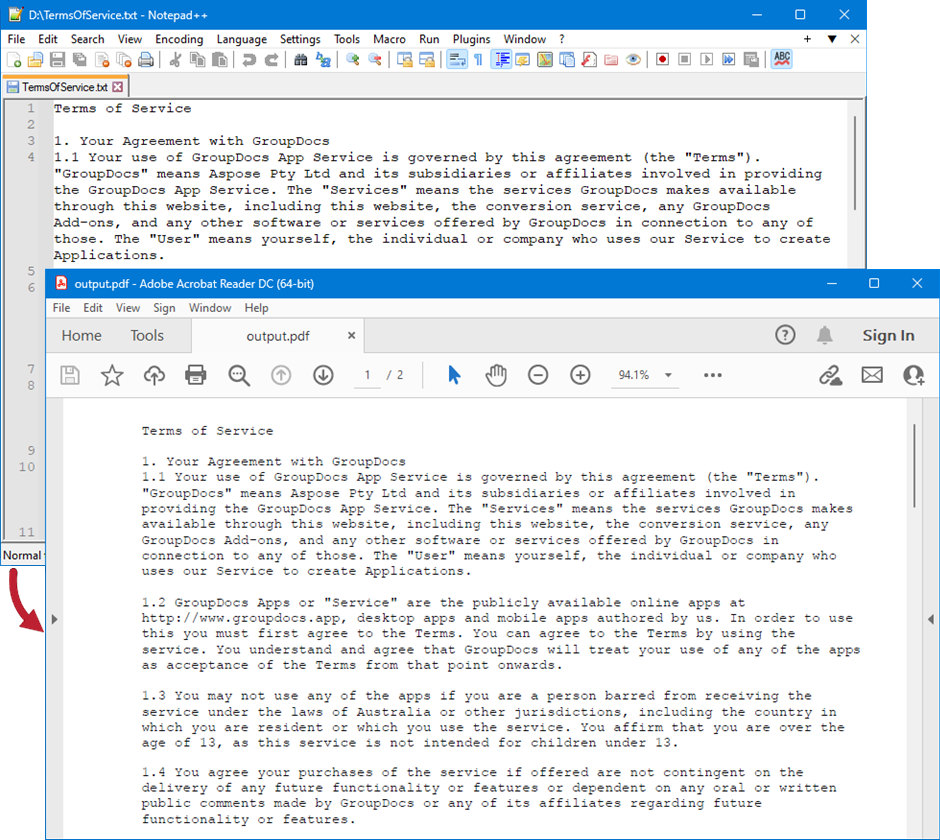
Binary file (PDF, 30 KB)
The following image demonstrates the result:
Create a PngViewOptions class instance and pass it to the Viewer.view method to convert a text file to PNG. Use the PngViewOptions.height and PngViewOptions.width methods to specify the output image size in pixels.
from groupdocs.viewer import Viewer
from groupdocs.viewer.options import PngViewOptions

def render_text_to_png():
    # Load text file
    with Viewer("terms_of_service.txt") as viewer:
        # Convert the text file to PNG.
        # {0} is replaced with the current page number in the output image names.
        viewOptions = PngViewOptions("render_text_to_png/text_page_0_{0}.png")
        # Set width and height.
        viewOptions.width = 950
        viewOptions.height = 550
        viewer.view(viewOptions)

if __name__ == "__main__":
    render_text_to_png()
terms_of_service.txt is the sample file used in this example. Click here to download it.
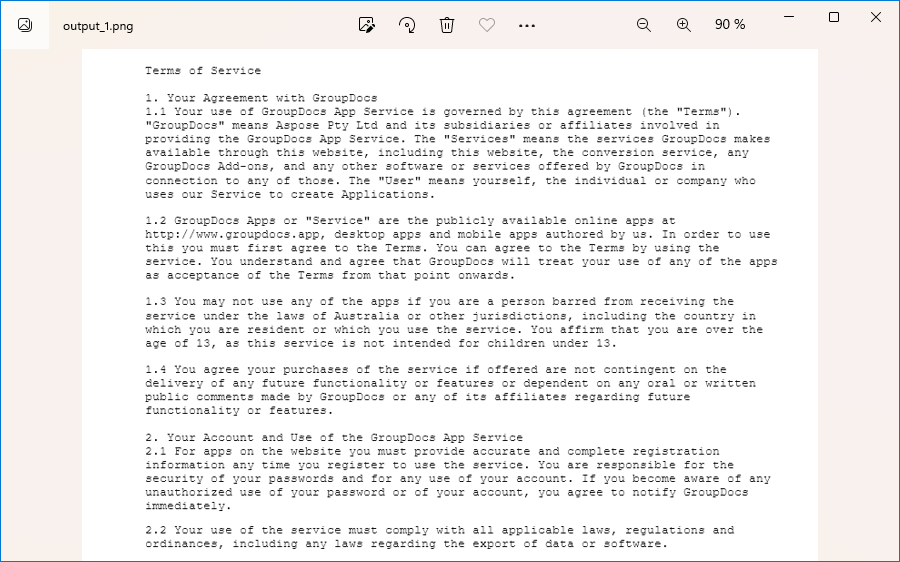
Binary file (PNG, 126 KB)
The following image demonstrates the result:
Create a JpgViewOptions class instance and pass it to the Viewer.view method to convert a text file to JPEG. Use the JpgViewOptions.height and JpgViewOptions.width methods to specify the output image size in pixels.
from groupdocs.viewer import Viewer
from groupdocs.viewer.options import JpgViewOptions

def render_text_to_jpg():
    # Load text file
    with Viewer("terms_of_service.txt") as viewer:
        # Convert the text file to JPEG.
        # {0} is replaced with the current page number in the output image names.
        viewOptions = JpgViewOptions("render_text_to_jpg/text_to_jpg_{0}.jpg")
        # Set width and height.
        viewOptions.width = 950
        viewOptions.height = 550
        viewer.view(viewOptions)

if __name__ == "__main__":
    render_text_to_jpg()
terms_of_service.txt is the sample file used in this example. Click here to download it.
Binary file (JPG, 110 KB)
Was this page helpful?
Any additional feedback you'd like to share with us?
Please tell us how we can improve this page.
Thank you for your feedback!
We value your opinion. Your feedback will help us improve our documentation.