Install GroupDocs.Viewer for .NET Leave feedback
On this page
This topic describes how to add the GroupDocs.Viewer library to your .NET project. You can use a NuGet package to install this library or you can download necessary DLLs from the GroupDocs website.
Starting with version 26.8, GroupDocs.Viewer is a NuGet metapackage that uses TFM-split packaging. You install one package name; NuGet restores the runtime package that matches your project’s target framework:
| Your target framework | Runtime package restored | Runs on |
|---|---|---|
.NET Framework 4.6.2 and later | GroupDocs.Viewer.Net462 | Windows |
.NET 6.0 or later | GroupDocs.Viewer.Net60 | Windows x64/x86, Linux x64/ARM64, macOS x64/ARM64 |
.NET 6.0-windows or later | GroupDocs.Viewer.Net60.Windows | Windows, including ARM64 |
Do not reference the runtime packages directly. Add GroupDocs.Viewer to your project, and NuGet selects the correct runtime.
NoteIf you previously used GroupDocs.Viewer.CrossPlatform, replace that package reference with GroupDocs.Viewer. The assembly name, namespaces, and public API are unchanged, so no code changes are required. As of 26.8 the CrossPlatform package is deprecated and only forwards to GroupDocs.Viewer.
You can also use GroupDocs.Viewer with .NET Framework 2.0 (Visual Studio 2005-2008), .NET Framework 4.0 (Visual Studio 2010), and later .NET Framework versions by selecting one of the previous versions of the GroupDocs.Viewer package. See the complete list of package versions and supported frameworks in the table below.
| Package version | Target frameworks |
|---|---|
| 26.8.0 | .NET Framework 4.6.2, .NET 6.0, .NET 6.0-windows (TFM-split) |
| 26.4.0 | .NET Framework 4.6.2, .NET 6.0 |
| 25.12.0 | .NET Framework 4.6.2, .NET 6.0 |
| 25.11.0 | .NET Framework 4.6.2, .NET 6.0 |
| 25.9.0 | .NET Framework 4.6.2, .NET 6.0 |
See previous versions
| Package version | Target frameworks |
|---|---|
| 25.8.0 | .NET Framework 4.6.2, .NET 6.0 |
| 25.7.0 | .NET Framework 4.6.2, .NET 6.0 |
| 25.6.0 | .NET Framework 4.6.2, .NET 6.0 |
| 25.5.0 | .NET Framework 4.6.2, .NET 6.0 |
| 25.4.0 | .NET Framework 4.6.2, .NET 6.0 |
| 25.3.0 | .NET Framework 4.6.2, .NET 6.0 |
| 25.2.0 | .NET Framework 4.6.2, .NET 6.0 |
| 25.1.1 | .NET Framework 4.6.2, .NET 6.0 |
| 25.1.0 | .NET Framework 4.6.2, .NET 6.0 |
| 24.12.0 | .NET Framework 4.6.2, .NET 6.0 |
| 24.11.0 | .NET Framework 4.6.2, .NET 6.0 |
| 24.10.0 | .NET Framework 4.6.2, .NET 6.0 |
| 24.9.0 | .NET Framework 4.6.2, .NET 6.0 |
| 24.8.0 | .NET Framework 4.6.2, .NET 6.0 |
| 24.7.0 | .NET Framework 4.6.2, .NET 6.0 |
| 24.6.0 | .NET Framework 4.6.2, .NET 6.0 |
| 24.5.0 | .NET Framework 4.6.2, .NET 6.0 |
| 24.4.0 | .NET Framework 4.6.2, .NET 6.0 |
| 24.3.0 | .NET Framework 4.6.2, .NET 6.0 |
| 24.2.0 | .NET Framework 4.6.2, .NET Standard 2.1 |
| 24.1.1 | .NET Framework 4.6.2, .NET Standard 2.1 |
| 23.12.0 | .NET Framework 4.6.2, .NET Standard 2.1 |
| 23.11.0 | .NET Framework 4.6.2, .NET Standard 2.1 |
| 23.10.0 | .NET Framework 4.6.2, .NET Standard 2.1 |
| 23.8.0 | .NET Framework 4.6.2, .NET Standard 2.1 |
| 23.6.0 | .NET Framework 4.0, .NET Standard 2.1 |
| 23.4.0 | .NET Framework 4.0, .NET Standard 2.1 |
| 23.3.0 | .NET Framework 4.0, .NET Standard 2.1 |
| 23.1.0 | .NET Framework 4.0, .NET Standard 2.1 |
| 22.11.0 | .NET Framework 4.0, .NET Standard 2.1, .NET 6.0 |
| 22.9.0 | .NET Framework 4.0, .NET Standard 2.1, .NET 6.0 |
| 22.7.0 | .NET Framework 4.0, .NET Standard 2.1, .NET 6.0 |
| 22.5.0 | .NET Framework 4.0, .NET Standard 2.1, .NET 6.0 |
| 22.3.0 | .NET 6.0, .NET Framework 4.0, .NET Standard 2.1 |
| 22.1.1 | .NET Framework 2.0, .NET Framework 4.0, .NET Standard 2.0 |
| 22.1.0 | .NET Framework 2.0, .NET Framework 4.0, .NET Standard 2.0 |
| 21.12.0 | .NET Framework 2.0, .NET Framework 4.0, .NET Standard 2.0 |
| 21.11.0 | .NET Framework 2.0, .NET Framework 4.0, .NET Standard 2.0 |
| 21.10.0 | .NET Framework 2.0, .NET Framework 4.0, .NET Standard 2.0 |
| 21.9.0 | .NET Framework 2.0, .NET Framework 4.0, .NET Standard 2.0 |
| 21.8.0 | .NET Framework 2.0, .NET Framework 4.0, .NET Standard 2.0 |
| 21.7.0 | .NET Framework 2.0, .NET Standard 2.0 |
| 21.6.0 | .NET Framework 2.0, .NET Standard 2.0 |
| 21.5.0 | .NET Framework 2.0, .NET Standard 2.0 |
| 21.4.1 | .NET Framework 2.0, .NET Standard 2.0 |
| 21.4.0 | .NET Framework 2.0, .NET Standard 2.0 |
| 21.3.0 | .NET Framework 2.0, .NET Standard 2.0 |
| 21.2.0 | .NET Framework 2.0, .NET Standard 2.0 |
| 21.1.0 | .NET Framework 2.0, .NET Standard 2.0 |
| 20.12.0 | .NET Framework 2.0, .NET Standard 2.0 |
| 20.11.0 | .NET Framework 2.0, .NET Standard 2.0 |
| 20.10.0 | .NET Framework 2.0, .NET Standard 2.0 |
| 20.9.0 | .NET Framework 2.0, .NET Standard 2.0 |
| 20.8.0 | .NET Framework 2.0, .NET Standard 2.0 |
| 20.7.0 | .NET Framework 2.0, .NET Standard 2.0 |
| 20.6.1 | .NET Framework 2.0, .NET Standard 2.0 |
| 20.6.0 | .NET Framework 2.0, .NET Standard 2.0 |
| 20.5.0 | .NET Framework 2.0, .NET Standard 2.0 |
| 20.4.0 | .NET Framework 2.0, .NET Standard 2.0 |
| 20.3.0 | .NET Framework 2.0, .NET Standard 2.0 |
| 20.2.0 | .NET Framework 2.0, .NET Standard 2.0 |
| 20.1.0 | .NET Framework 2.0, .NET Standard 2.0 |
| 19.12.0 | .NET Framework 2.0, .NET Standard 2.0 |
| 19.11.0 | .NET Framework 2.0, .NET Standard 2.0 |
| 19.10.0 | .NET Framework 2.0, .NET Standard 2.0 |
| 19.9.0 | .NET Framework 2.0 |
| 19.8.0 | .NET Framework 2.0 |
| 19.6.0 | .NET Framework 2.0 |
| 19.5.0 | .NET Framework 2.0 |
| 19.4.0 | .NET Framework 2.0 |
| 19.3.1 | .NET Framework 2.0 |
| 19.3.0 | .NET Framework 2.0 |
| 19.2.0 | .NET Framework 2.0 |
| 19.1.0 | .NET Framework 2.0 |
| 18.12.0 | .NET Framework 2.0 |
| 18.11.0 | .NET Framework 2.0 |
| 18.10.0 | .NET Framework 2.0 |
| 18.9.0 | .NET Framework 2.0 |
| 18.8.1 | .NET Framework 2.0 |
| 18.8.0 | .NET Framework 2.0 |
| 18.7.0 | .NET Framework 2.0 |
| 18.6.1 | .NET Framework 2.0 |
| 18.6.0 | .NET Framework 2.0 |
| 18.5.0 | .NET Framework 2.0 |
| 18.4.0 | .NET Framework 2.0 |
| 18.3.0 | .NET Framework 2.0 |
| 18.1.0 | .NET Framework 2.0 |
| 17.12.0 | .NET Framework 2.0 |
| 17.11.0 | .NET Framework 2.0 |
| 17.10.0 | .NET Framework 2.0 |
| 17.9.0 | .NET Framework 2.0 |
Tip.NET Framework provides a high degree of backward compatibility. Applications targeting an earlier supported version of .NET Framework can generally run on later versions. See the Microsoft documentation for details.
You can use the following tools to install the GroupDocs.Viewer NuGet packages:
TipSome earlier versions of Visual Studio do not include NuGet Package Manager by default. It can be added as an extension from the Visual Studio Marketplace.
Open your project or solution in Visual Studio and follow the steps below to install the GroupDocs.Viewer package using the NuGet Package Manager:
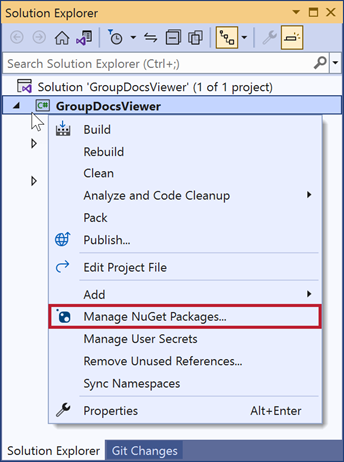
In Solution Explorer, right-click your project name and select Manage NuGet Packages to display the NuGet Package Manager.
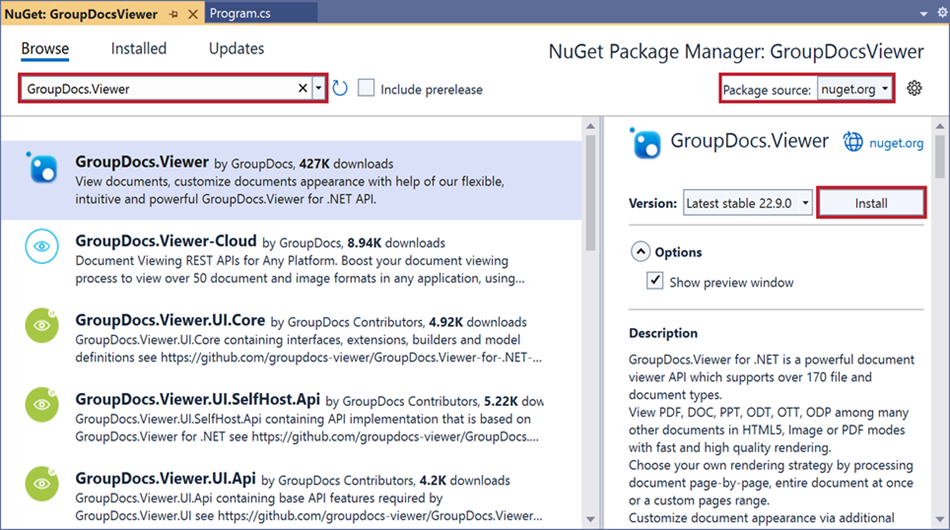
Select the Browse tab and type GroupDocs.Viewer in the search box. Select the latest version of the package and click Install.
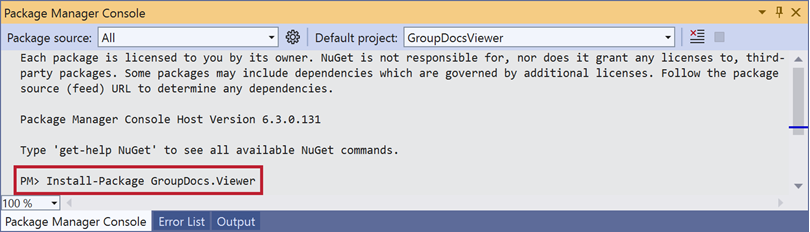
The Package Manager Console uses PowerShell commands to install, update, and remove NuGet packages. Open your project in Visual Studio and click Tools -> NuGet Package Manager -> Package Manager Console to open the console window. Run the following command to install the latest version of the package:
PM> Install-Package GroupDocs.Viewer
You can also use the .NET CLI tool to install and update NuGet packages. Open a terminal in your project’s folder and execute the following command to install the package:
dotnet add package GroupDocs.Viewer
Visit https://releases.groupdocs.com/viewer/net/ and download the GroupDocs.Viewer assemblies as a ZIP archive or MSI installer. To reference the downloaded assembly files in your project, do the following:
Extract files from the ZIP archive or run the MSI installer to install GroupDocs.Viewer to a specific location on your computer.
Open your solution or project in Visual Studio.
In Solution Explorer, right-click the References or Dependencies node, and select Add Reference.
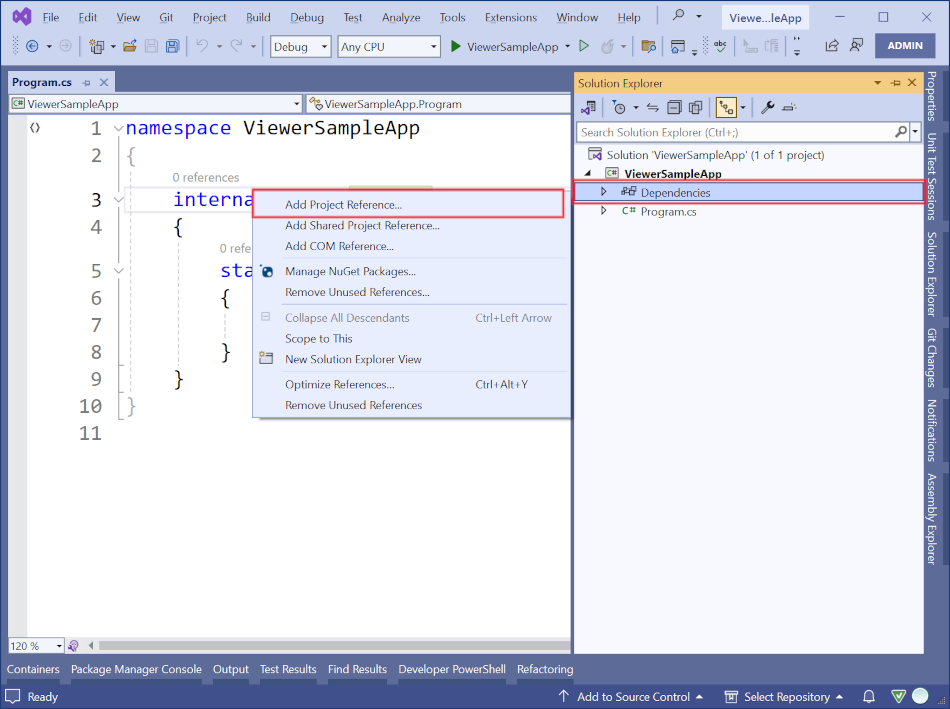
In the Reference Manager dialog box, select the Browse tab and click Browse to locate the GroupDocs.Viewer.dll file for the target framework.
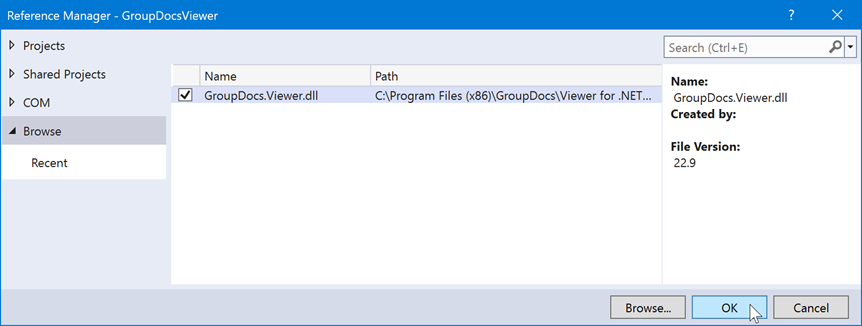
Click OK to add a reference to the GroupDocs.Viewer library to your project.
WarningIf you reference GroupDocs.Viewer from a ZIP or MSI download instead of NuGet, ensure that your project has all the required dependencies for the target framework. Refer to the following page for details: GroupDocs.Viewer dependencies.
Was this page helpful?
Any additional feedback you'd like to share with us?
Please tell us how we can improve this page.
Thank you for your feedback!
We value your opinion. Your feedback will help us improve our documentation.


