Iterative Digital signing of the PDF document Leave feedback
On this page
GroupDocs.Signature provides DigitalSignOptions class to specify different amount of settings for Digital signature
- digital certificate (file on local disk
setCertificateFilePathor streamsetCertificateStream) (required) - password of digital certificate
setPassword(required) - digital signature details (
setReason,setContact,setLocation)
- Define the paths for the input PDF file, the digital certificates, and specify the output path where the signed documents will be saved.
- Create a new instance of the Signature class and pass the source document path as a constructor parameter.
- Instantiate the DigitalSignOptions object with the required certificate and its password, and configure additional properties such as reason, contact, location, and position.
- Call the
signmethod of Signature class instance and pass DigitalSignOptions to it. - After signing, update the document path for the next iteration.
- Analyze the SignResult to check the newly created signatures if needed.
- Iterate through each certificate, repeating the above steps for each one.
This example demonstrates how to iteratively sign a PDF document with multiple digital certificates. Each signature is added to the document produced by the previous iteration, so the signatures added earlier stay valid. See SignResult
String filePath = "sample.pdf";
String[] certificatePaths = new String[] { "certificate1.pfx", "certificate2.pfx" };

String outputFolder = new File("output folder path", "SignWithDigitalIterative").getPath();
int iteration = 1;
String documentFile = filePath;

for (String certificatePath : certificatePaths)
{
    Signature signature = new Signature(documentFile);
    try
    {
        DigitalSignOptions options = new DigitalSignOptions(certificatePath);
        // certificate password
        options.setPassword("1234567890");
        // digital certificate details
        options.setReason("Approved-" + iteration);
        options.setContact("John" + iteration + " Smith" + iteration);
        options.setLocation("Location-" + iteration);
        // sign all pages
        options.setAllPages(true);
        options.setLeft(10 + 100 * (iteration - 1));
        options.setTop(10 + 100 * (iteration - 1));
        options.setWidth(160);
        options.setHeight(80);
        Padding margin = new Padding();
        margin.setBottom(10);
        margin.setRight(10);
        options.setMargin(margin);

        // each iteration writes its own file
        String outputFilePath = new File(outputFolder, "result-" + iteration + ".pdf").getPath();
        SignResult signResult = signature.sign(outputFilePath, options);
        // the next iteration signs the document produced by this one
        documentFile = outputFilePath;
        System.out.println("Source document signed successfully " + (iteration++) + "-time with "
                + signResult.getSucceeded().size() + " signature(s). File saved at " + outputFilePath + ".");
    }
    finally
    {
        signature.dispose();
    }
}
This example demonstrates how to iteratively sign a PDF document with multiple digital certificates, customizing the appearance and adding an image to each signature. See SignResult
Here are the steps:
- Setting up variables: define the paths for the input PDF file, the digital certificates, and specify the output path where the signed documents will be saved.
// File paths for source document, image, and output files
String sourceFile = "sample.pdf";
String imageFilePath = "image.jpg";
String signedFile = "signed.pdf";
String resultOutputFile = "result.pdf";

// Paths to digital certificates for signing
String[] certificatePaths = new String[] { certificateFilePath1, certificateFilePath2 };
int iteration = 0;
- Helper method to generate the DigitalSignOptions object with the required certificate and its password, and configure additional properties such as reason, contact, location, and position. An image and custom appearance labels of PdfDigitalSignatureAppearance are also set.
private static DigitalSignOptions createDigitalSignOptions(String certificatePath,
        String imageFilePath, int iteration)
{
    DigitalSignOptions options = new DigitalSignOptions(certificatePath);
    options.setPassword("1234567890");             // Certificate password
    options.setReason("Sign");                     // Signature reason
    options.setContact("JohnSmith" + iteration);   // Contact details
    options.setLocation("Office" + iteration);     // Signature location
    options.setVisible(true);
    options.setLeft(80 + iteration * 5);           // Positioning for visibility
    options.setTop(600 + iteration * 5);
    options.setHeight(50 + iteration * 5);
    options.setWidth(200 + iteration * 5);
    options.setImageFilePath(imageFilePath);       // Image appearance for signature

    PdfDigitalSignatureAppearance appearance = new PdfDigitalSignatureAppearance();
    appearance.setReasonLabel("Reason Label");
    appearance.setDigitalSignedLabel("Digital Signed Label");
    options.setAppearance(appearance);
    return options;
}
- Create a new instance of the Signature class and pass the source document path as a constructor parameter.
- Call the
signmethod of Signature class instance and pass DigitalSignOptions to it. - After signing, update the document path for the next iteration.
- Analyze the SignResult to check the newly created signatures if needed.
- Iterate through each certificate, repeating the above steps for each one.
for (String certificatePath : certificatePaths)
{
    Signature signature = new Signature(sourceFile);
    try
    {
        // Generate signature options with helper method
        DigitalSignOptions options = createDigitalSignOptions(certificatePath, imageFilePath, iteration);

        // Update output file name on second iteration
        if (iteration == 1)
        {
            signedFile = resultOutputFile;
        }

        // Sign document and display result
        SignResult signResult = signature.sign(signedFile, options);
        System.out.println("Document signed successfully " + (iteration + 1) + "-time with "
                + signResult.getSucceeded().size() + " signature(s). File saved at " + signedFile + ".");
        iteration++;
    }
    finally
    {
        signature.dispose();
    }
    // The next iteration signs the document produced by this one
    sourceFile = signedFile;
}
This example demonstrates how to apply a digital signature with a customized appearance, including a foreground color, image, and specific font settings.
Here are the steps:
- Setting up variables: define the paths for the input PDF file, the digital certificates, and specify the output path where the signed documents will be saved.
// File paths for source document, image, and output files
String sourceFile = "sample.pdf";
String imageFilePath = "image.jpg";
String signedFile = "signed.pdf";
String resultOutputFile = "result.pdf";

// Paths to digital certificates for signing
String[] certificatePaths = new String[] { certificateFilePath1, certificateFilePath2 };
int iteration = 0;
- Helper method to generate the DigitalSignOptions object with the required certificate and its password, and configure additional properties such as reason, contact, location, and position. An image, a font color and font settings of PdfDigitalSignatureAppearance are also set. The color is a
java.awt.Color.
private static DigitalSignOptions createDigitalSignOptions(String certificatePath,
        String imageFilePath, int iteration)
{
    DigitalSignOptions options = new DigitalSignOptions(certificatePath);

    // Provide the certificate password
    options.setPassword("1234567890");

    // Digital certificate details for signature metadata
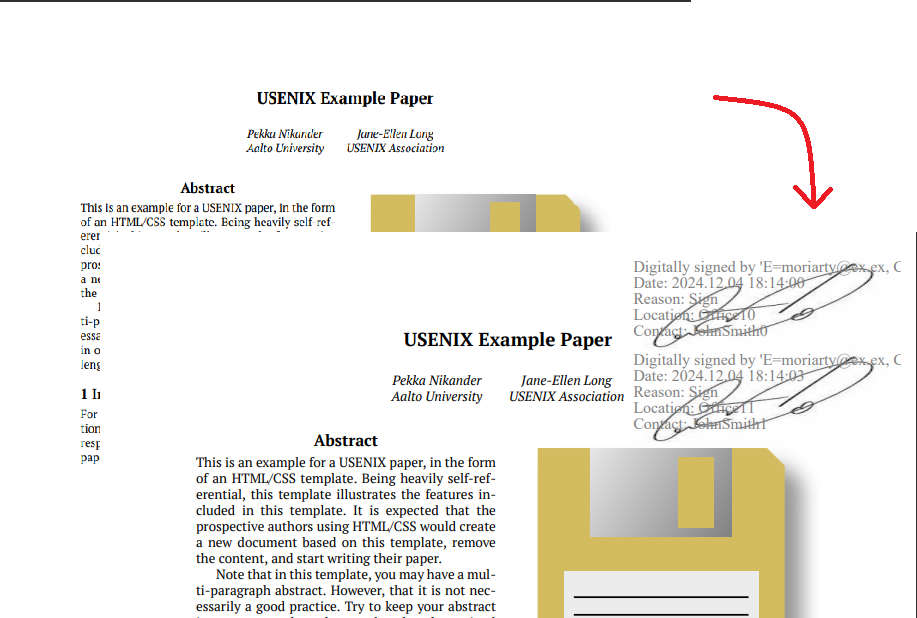
    options.setReason("Sign");                       // Reason for the signature
    options.setContact("JohnSmith" + iteration);     // Contact information of the signer
    options.setLocation("Office1" + iteration);      // Location where the document is signed

    // Enable visibility of the signature on the document
    options.setVisible(true);

    // Specify the position and size of the signature on the page
    options.setLeft(400);                            // Horizontal position (X-axis)
    options.setTop(20 + iteration * 70);             // Vertical position (Y-axis)
    options.setHeight(70);                           // Height of the signature area
    options.setWidth(200);                           // Width of the signature area

    // Add an image to represent the digital certificate's appearance
    options.setImageFilePath(imageFilePath);         // Path to the image file

    // Customize the signature's appearance
    PdfDigitalSignatureAppearance appearance = new PdfDigitalSignatureAppearance();
    // Set a semi-transparent gray font color for the signature text
    appearance.setForeground(new Color(128, 128, 128, 50));
    // Apply specific font settings for the signature
    appearance.setFontFamilyName("TimesNewRoman");   // Font family name
    appearance.setFontSize(12);                      // Font size
    options.setAppearance(appearance);
    return options;
}
- Create a new instance of the Signature class and pass the source document path as a constructor parameter.
- Call the
signmethod of Signature class instance and pass DigitalSignOptions to it. - After signing, update the document path for the next iteration.
- Analyze the SignResult to check the newly created signatures if needed.
- Iterate through each certificate, repeating the above steps for each one.
for (String certificatePath : certificatePaths)
{
    Signature signature = new Signature(sourceFile);
    try
    {
        // Generate signature options with helper method
        DigitalSignOptions options = createDigitalSignOptions(certificatePath, imageFilePath, iteration);

        // Update output file name on second iteration
        if (iteration == 1)
        {
            signedFile = resultOutputFile;
        }

        // Sign document and display result
        SignResult signResult = signature.sign(signedFile, options);
        System.out.println("Document signed successfully " + (iteration + 1) + "-time with "
                + signResult.getSucceeded().size() + " signature(s). File saved at " + signedFile + ".");
        iteration++;
    }
    finally
    {
        signature.dispose();
    }
    // The next iteration signs the document produced by this one
    sourceFile = signedFile;
}
The following image demonstrates the result:
You may easily run the code above and see the feature in action in our GitHub examples:
- GroupDocs.Signature for Java examples, plugins, and showcase
- GroupDocs.Signature for .NET examples, plugins, and showcase
- Document Signature for Java App Dropwizard UI Example
- Document Signature for Java Spring UI Example
- Document Signature for .NET MVC UI Example
- Document Signature for .NET App WebForms UI Example
Along with the full-featured Java library, we provide simple but powerful free online apps.
To sign PDF, Word, Excel, PowerPoint, and other documents you can use the online apps from the GroupDocs.Signature App Product Family.
Was this page helpful?
Any additional feedback you'd like to share with us?
Please tell us how we can improve this page.
Thank you for your feedback!
We value your opinion. Your feedback will help us improve our documentation.


